Hand-build, verify, and install an integration in about ten minutes.
The developer path — everything the no-code quickstart
does, built by hand.You’ll build Coffee Tracker: say “log a flat white” and VoiceOS records it
after a confirmation card; ask “how’s my coffee habit?” and the notch shows a
stats card with a weekly chart. Two tools, native UI, no VoiceOS internals.Prerequisite:bun. That’s all.
During the developer preview the SDK ships inside the VoiceOS repository. If
the package isn’t available to you yet, run
bun voiceos-integration-sdk/src/cli.ts init "Coffee Tracker" from a checkout.
You get a complete, standalone folder:
coffee-tracker/├── voiceos.integration.json # the manifest├── server.ts # a working MCP server (stub logic)├── verify.ts # smoke test├── voiceos.integration.preview.json # sample inputs for verify + previews├── AGENTS.md # the whole contract, for AI coding agents├── README.md└── package.json
Standalone means it imports nothing from the SDK — the one glance helper it
needs is inlined. It runs anywhere with bun, and an AI coding agent pointed at
the folder learns the entire contract from AGENTS.md.
Three templates: confirm-and-send (default — an acting tool with a
confirmation card), fetch-and-show-list (a read-only lookup), and
background-task (long-running work). Pick with --template.
2
Declare the tools
Replace the tools array in voiceos.integration.json with two tools — one
that acts (and so declares a confirmation), one that only reads (and so must
not):
voiceos.integration.json
{ "schemaVersion": 1, "id": "com.you.coffee-tracker", "version": "1.0.0", "name": "Coffee Tracker", "summary": "Log every coffee by voice and glance your habits in the notch.", "publisher": { "id": "pub_you", "name": "You" }, "runtime": { "kind": "local-mcp", "command": "bun", "args": ["server.ts"] }, "tools": [ { "name": "log_coffee", "title": "Log coffee", "description": "Log a coffee the user drank. Use when the user says they had, drank, or want to log a coffee.", "inputSchema": { "type": "object", "properties": { "drink": { "type": "string", "description": "What they drank, e.g. flat white" }, "shots": { "type": "number", "description": "Espresso shots (default 1)" } }, "required": ["drink"] }, "confirmation": { "schemaVersion": 1, "root": { "type": "card", "title": "Log coffee", "children": [ { "type": "textField", "bind": "{{drink}}", "label": "Drink" } ], "footer": [ { "type": "actions", "items": [ { "label": "Cancel", "role": "cancel" }, { "label": "Log it", "role": "confirm", "color": "accent" } ] } ] } } }, { "name": "coffee_stats", "title": "Coffee stats", "description": "Show how much coffee the user has been drinking. Use when the user asks about their coffee habits, count, or stats.", "inputSchema": { "type": "object", "properties": {} } } ]}
Two things to notice:
Descriptions are routing rules. The agent reads them to decide when to
call your tool — say what it does and when to use it.
The confirmation is data, not code. It renders before your server runs.
{{drink}} binds the text field to the tool argument; whatever the user edits
it to is what your handler receives.
The confirmation card you just declared — the Drink field is live, bound to the drink argument.
3
Implement the handlers
Replace server.ts. It’s a standard MCP
stdio server; the only VoiceOS-specific part is spreading glanceResult([...])
into the JSON result — that’s your card in the notch.
server.ts
/** Coffee Tracker — a VoiceOS integration server (standard MCP over stdio). */import { McpServer } from "@modelcontextprotocol/sdk/server/mcp.js";import { StdioServerTransport } from "@modelcontextprotocol/sdk/server/stdio.js";import { z } from "zod";// VoiceOS glance helper — inlined; also exported by the integration SDK.function glanceResult(blocks: Array<Record<string, unknown> & { type: string }>) { if (blocks.length === 0 || blocks.length > 3) { throw new Error("glanceResult: pass 1-3 blocks"); } return { _voiceos_glance: { blocks } };}const jsonResult = (payload: unknown) => ({ content: [{ type: "text" as const, text: JSON.stringify(payload) }],});const LOG_FILE = new URL("./coffee-log.json", import.meta.url);const DAYS = ["Mon", "Tue", "Wed", "Thu", "Fri", "Sat", "Sun"];type Entry = { at: string; drink: string; shots: number };async function readLog(): Promise<Entry[]> { try { return JSON.parse(await Bun.file(LOG_FILE).text()); } catch { return []; }}const server = new McpServer({ name: "coffee-tracker", version: "1.0.0" });server.registerTool( "log_coffee", { title: "Log coffee", description: "Log a coffee the user drank. Use when the user says they had, drank, or want to log a coffee.", inputSchema: { drink: z.string().describe("What they drank, e.g. flat white"), shots: z.number().optional().describe("Espresso shots (default 1)"), }, }, async ({ drink, shots }) => { const entries = await readLog(); const entry: Entry = { at: new Date().toISOString(), drink, shots: shots ?? 1 }; entries.push(entry); await Bun.write(LOG_FILE, JSON.stringify(entries, null, 2)); const todayKey = new Date().toDateString(); const today = entries.filter((e) => new Date(e.at).toDateString() === todayKey).length; return jsonResult({ logged: entry, todayCount: today, ...glanceResult([ { type: "header", title: "Coffee Tracker", icon: "coffee", trailing: "Logged" }, { type: "keyValue", pairs: [ ["Drink", drink], ["Today", `${today} coffee${today === 1 ? "" : "s"}`], ], }, ]), }); },);server.registerTool( "coffee_stats", { title: "Coffee stats", description: "Show how much coffee the user has been drinking. Use when the user asks about their coffee habits, count, or stats.", inputSchema: {}, }, async () => { const entries = await readLog(); const weekAgo = Date.now() - 7 * 24 * 60 * 60 * 1000; const recent = entries.filter((e) => new Date(e.at).getTime() > weekAgo); // getDay() is Sunday-first; shift so index 0 is Monday. const values = DAYS.map( (_, i) => recent.filter((e) => (new Date(e.at).getDay() + 6) % 7 === i).length, ); return jsonResult({ total: entries.length, thisWeek: recent.length, byWeekday: Object.fromEntries(DAYS.map((d, i) => [d, values[i]])), ...glanceResult([ { type: "header", title: "Coffee Tracker", icon: "coffee", trailing: "This week" }, { type: "stats", items: [ { label: "This week", value: String(recent.length) }, { label: "All time", value: String(entries.length) }, ], }, { type: "bars", labels: DAYS, values }, ]), }); },);await server.connect(new StdioServerTransport());
Every result carries data for the model (logged, todayCount, …) anda card for the user. Never put information only in the card — the model
narrates from the JSON.
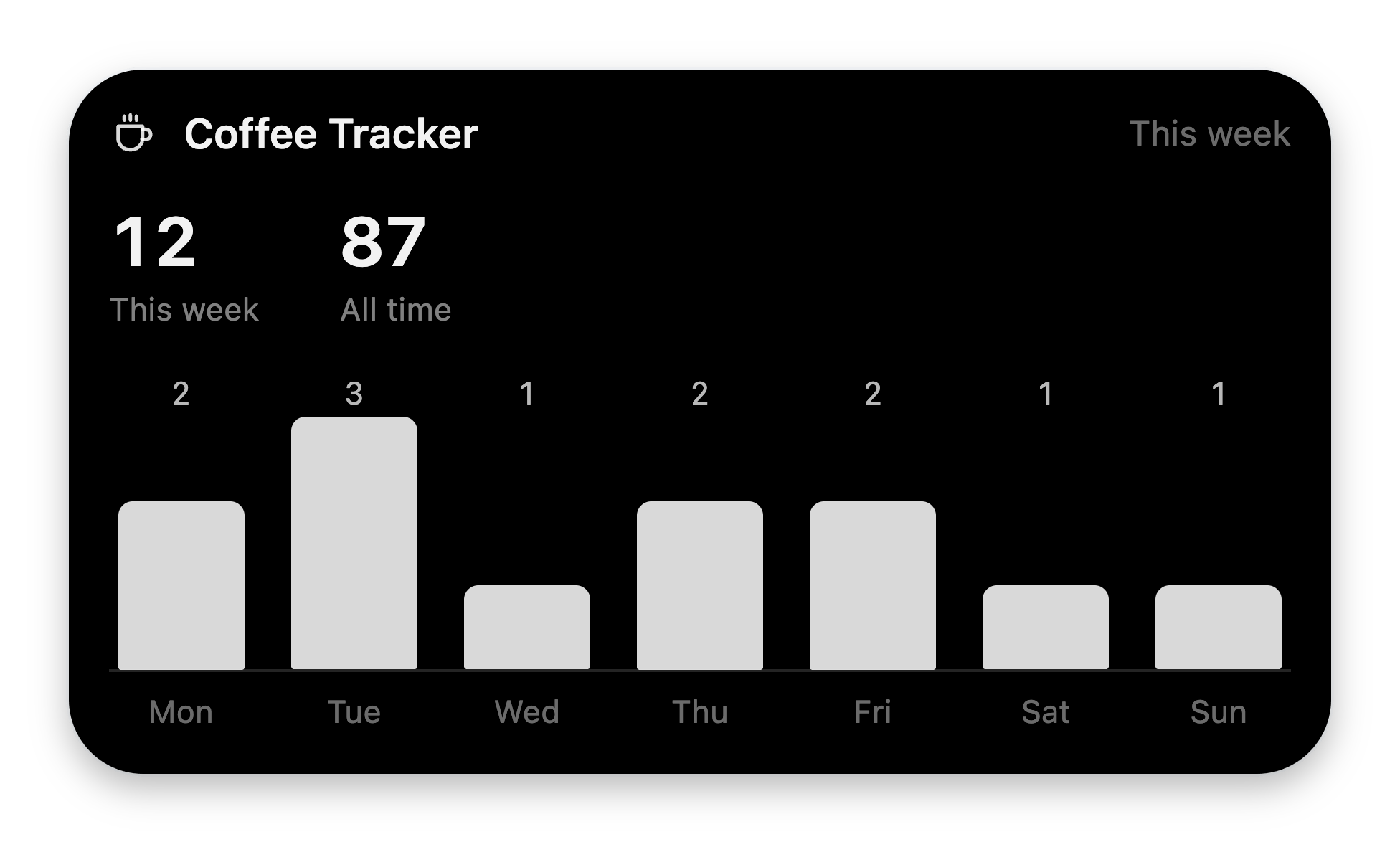
Those two glanceResult calls are these two cards:
log_coffee — header block + keyValue block.
coffee_stats — header, two stat tiles, and a week of bars.
Finally, point the preview fixtures at the new tools so verify.ts can call
them:
voiceos.integration.preview.json
{ "schemaVersion": 1, "description": "Development-only sample inputs used by bun verify.ts and the VoiceOS Integration Studio preview.", "tools": { "log_coffee": { "args": { "drink": "flat white" }, "expectedGlanceBlocks": 2 }, "coffee_stats": { "args": {}, "expectedGlanceBlocks": 3 } }}
4
Verify
bun add @modelcontextprotocol/sdk zod && bun verify.ts
verify.ts speaks real MCP over stdio to your server exactly the way VoiceOS
does — handshake, tools/list, then a tools/call per preview fixture:
✓ manifest schema version is v1✓ preview fixture schema version is v1✓ initialize handshake✓ tools match voiceos.integration.json — coffee_stats, log_coffee✓ log_coffee has a model-facing description✓ coffee_stats has a model-facing description✓ coffee_stats preview call returns text✓ coffee_stats preview call returns 1-3 glance blocks✓ log_coffee preview call returns text✓ log_coffee preview call returns 1-3 glance blocks
Run it after every change — it’s also the feedback loop AI coding agents use
when you point them at the folder.
5
Install into VoiceOS
Settings → Agent Mode → Integrations → Install from folder, then pick
coffee-tracker/.After later edits, hit the integration’s Reload — it re-reads the manifest
and restarts your server. Tools update on the next turn.
6
Talk to it
“Log a flat white” → the Log coffee confirmation card appears. Edit the
drink if you like, approve — the handler runs with the edited value, and the
“Logged” card confirms it.
“How’s my coffee habit?” → the stats card renders: header, two stat tiles,
and a bar chart of your week.
Add this top-level field to Coffee Tracker’s manifest, alongside its existing
tools array, to make the stats command eligible for fast intent selection:
{ "intents": [ { "name": "show_coffee_stats", "tool": "coffee_stats", "description": "Show coffee consumption statistics. Use for coffee counts or habits, not for logging a new drink.", "utterances": { "en": ["Show my coffee stats", "How is my coffee habit"] }, "response": { "en": "Getting your coffee stats." } } ]}
Reload the integration and try one of the phrases. The existing coffee_stats
handler still returns the same stats card. Intent selection runs alongside the
normal agent, which continues if no intent wins. See Fast intents
for slots, dynamic choices, availability, and testing.