> ## Documentation Index
> Fetch the complete documentation index at: https://docs.voiceos.com/llms.txt
> Use this file to discover all available pages before exploring further.
# Quickstart
> Build your first integration in about three minutes — no code, right inside VoiceOS.
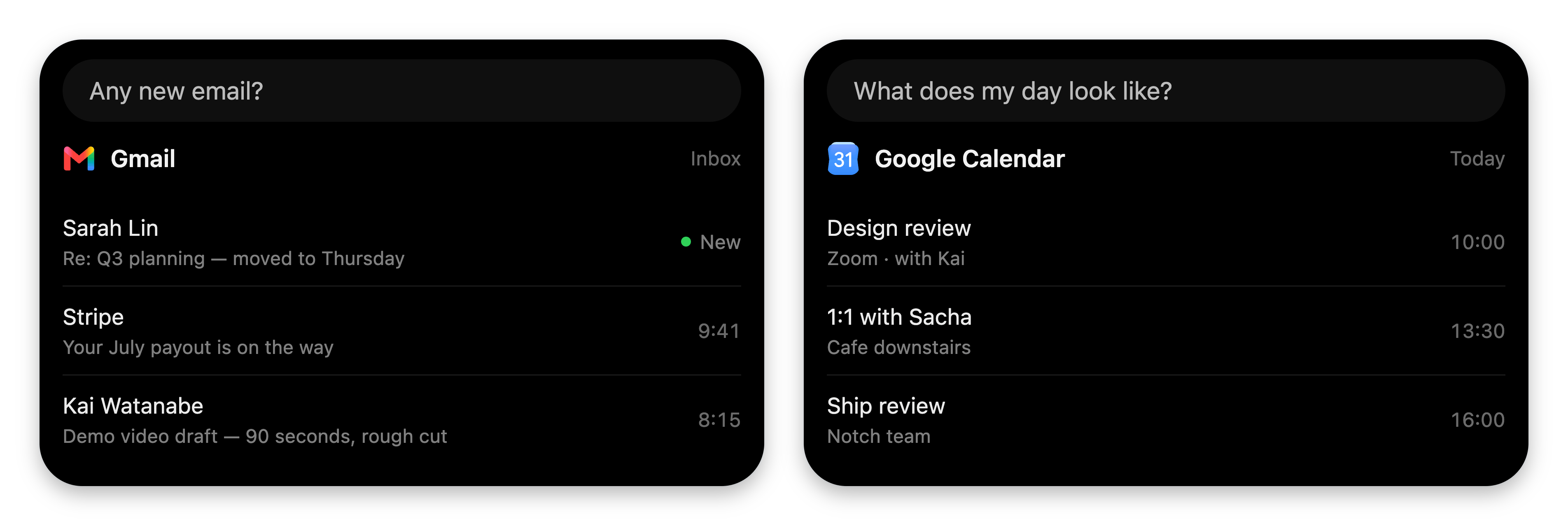
Every VoiceOS integration — Gmail, Google Calendar, Linear, and the ones you
make — speaks the same visual language: **native cards in the notch**.
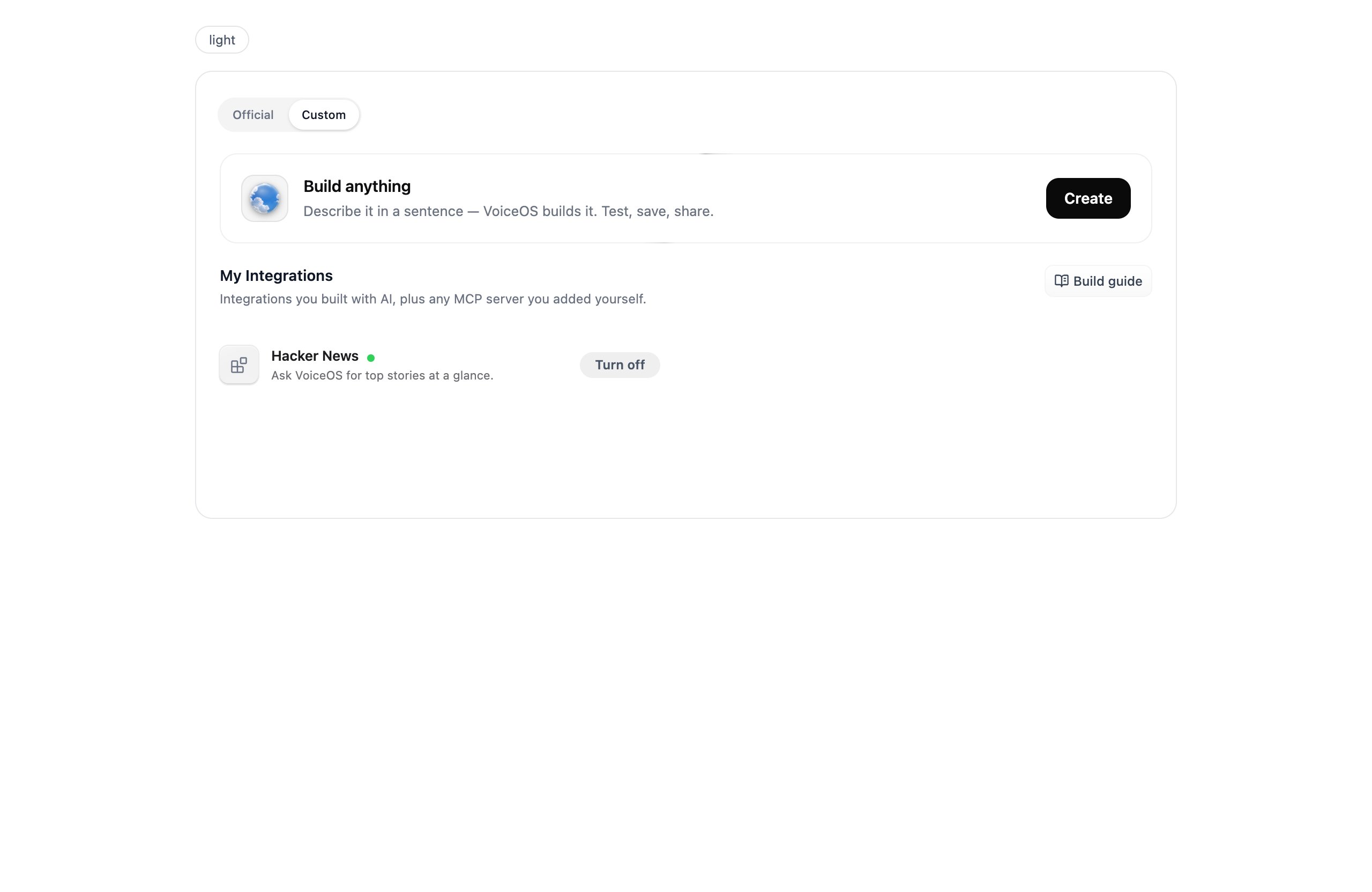
 You'll build one of your own without leaving the app. No code, no terminal.
**Integrations → Custom tab → Build anything.**
You'll build one of your own without leaving the app. No code, no terminal.
**Integrations → Custom tab → Build anything.**
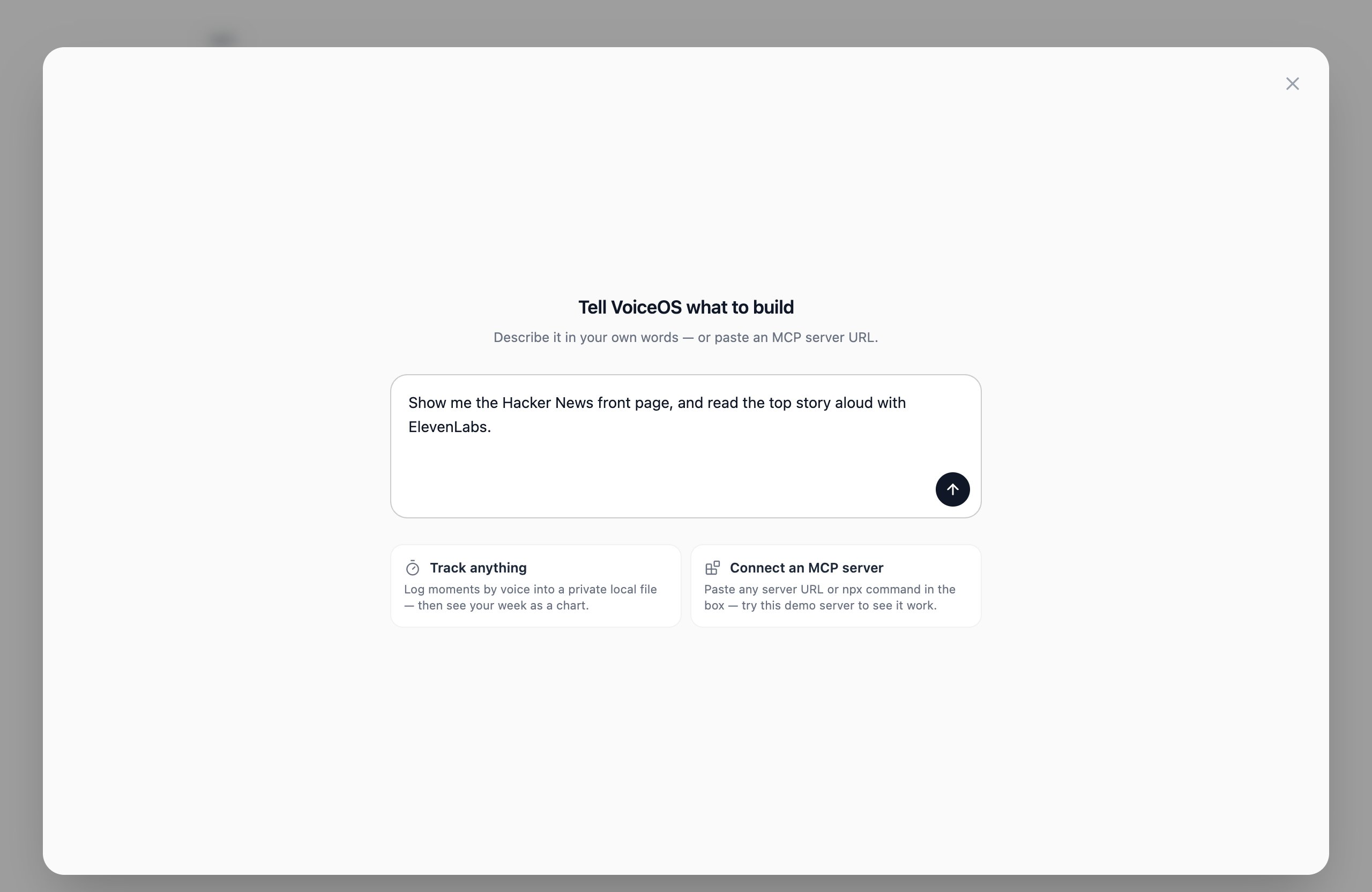
 Describe it the way you'd brief a person: what to fetch or track, what each
action does, what you want to see.
Describe it the way you'd brief a person: what to fetch or track, what each
action does, what you want to see.
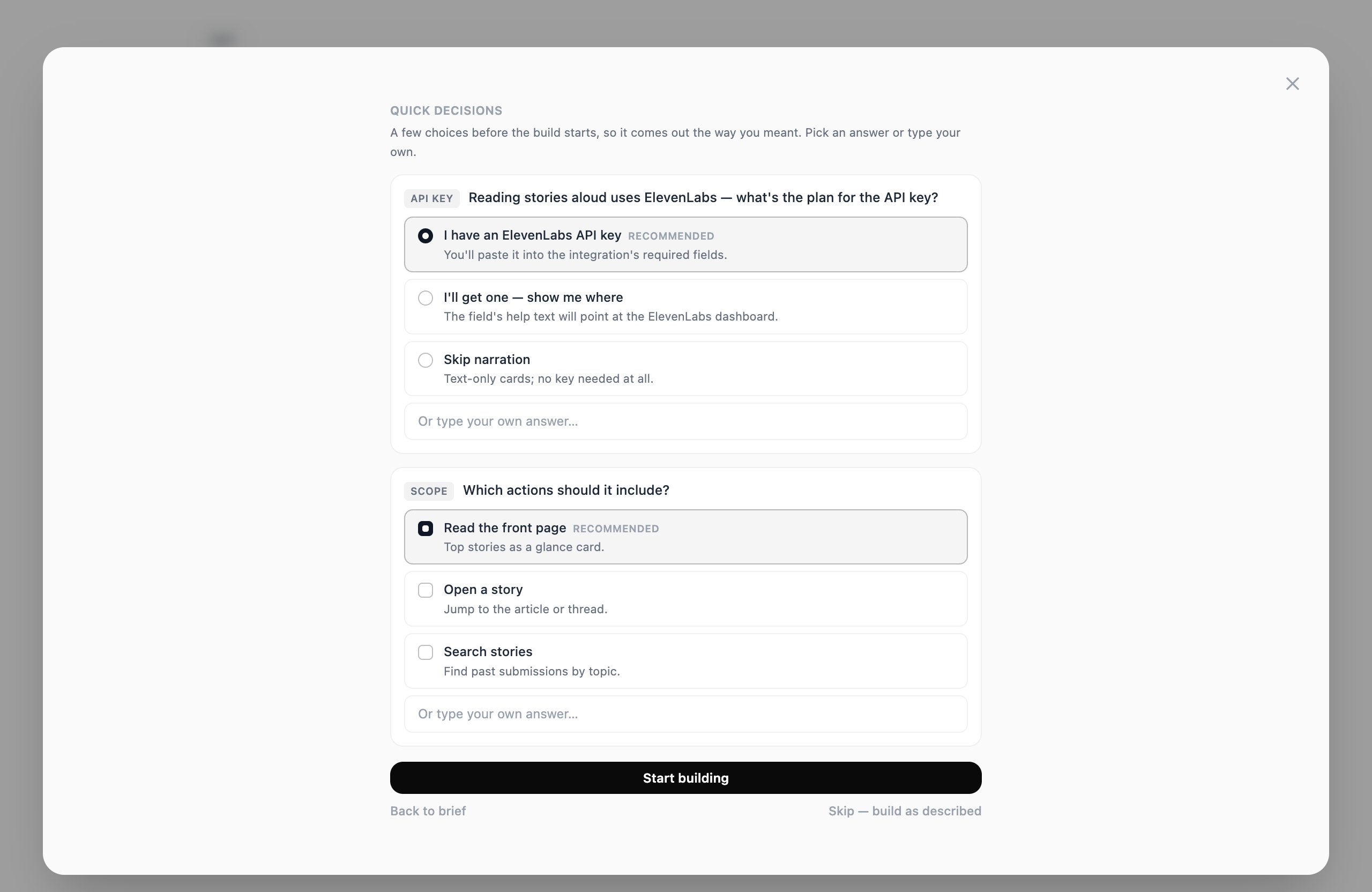
 VoiceOS researches the services involved and asks up to four multiple-choice
questions — data source, API keys, scope. The recommended answer is always
first, and **Skip — build as described** is always available.
VoiceOS researches the services involved and asks up to four multiple-choice
questions — data source, API keys, scope. The recommended answer is always
first, and **Skip — build as described** is always available.
 A couple of minutes: it plans, generates, validates itself, installs a **live
draft on your Mac**, draws an icon, and design-reviews its own cards.
A couple of minutes: it plans, generates, validates itself, installs a **live
draft on your Mac**, draws an icon, and design-reviews its own cards.
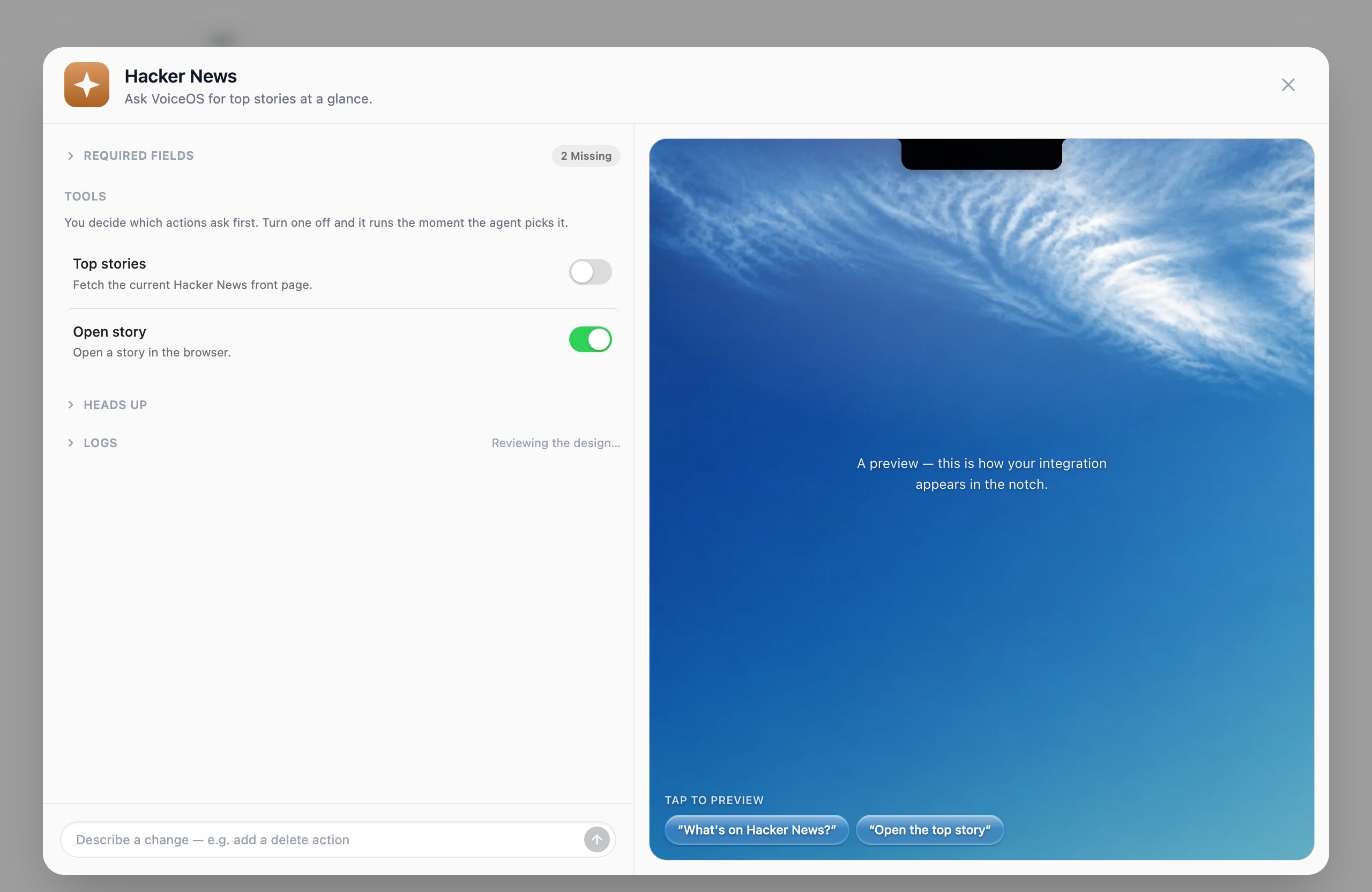 Closing the window doesn't stop the build. A progress row stays in My
Integrations — reopen it any time.
The preview runs **real agent turns** against your draft. Tap a suggestion chip
or type an utterance; acting tools park on their confirmation card first,
exactly as they will live.
Closing the window doesn't stop the build. A progress row stays in My
Integrations — reopen it any time.
The preview runs **real agent turns** against your draft. Tap a suggestion chip
or type an utterance; acting tools park on their confirmation card first,
exactly as they will live.
 Two things worth doing before you save:
* **Fill in Required fields** (that ElevenLabs API key). The draft relaunches
with your values, so the full flow is testable immediately.
* **Click each row in Tools** to stage that action's card, and use the **Asks
first** toggles to decide which actions confirm before running.
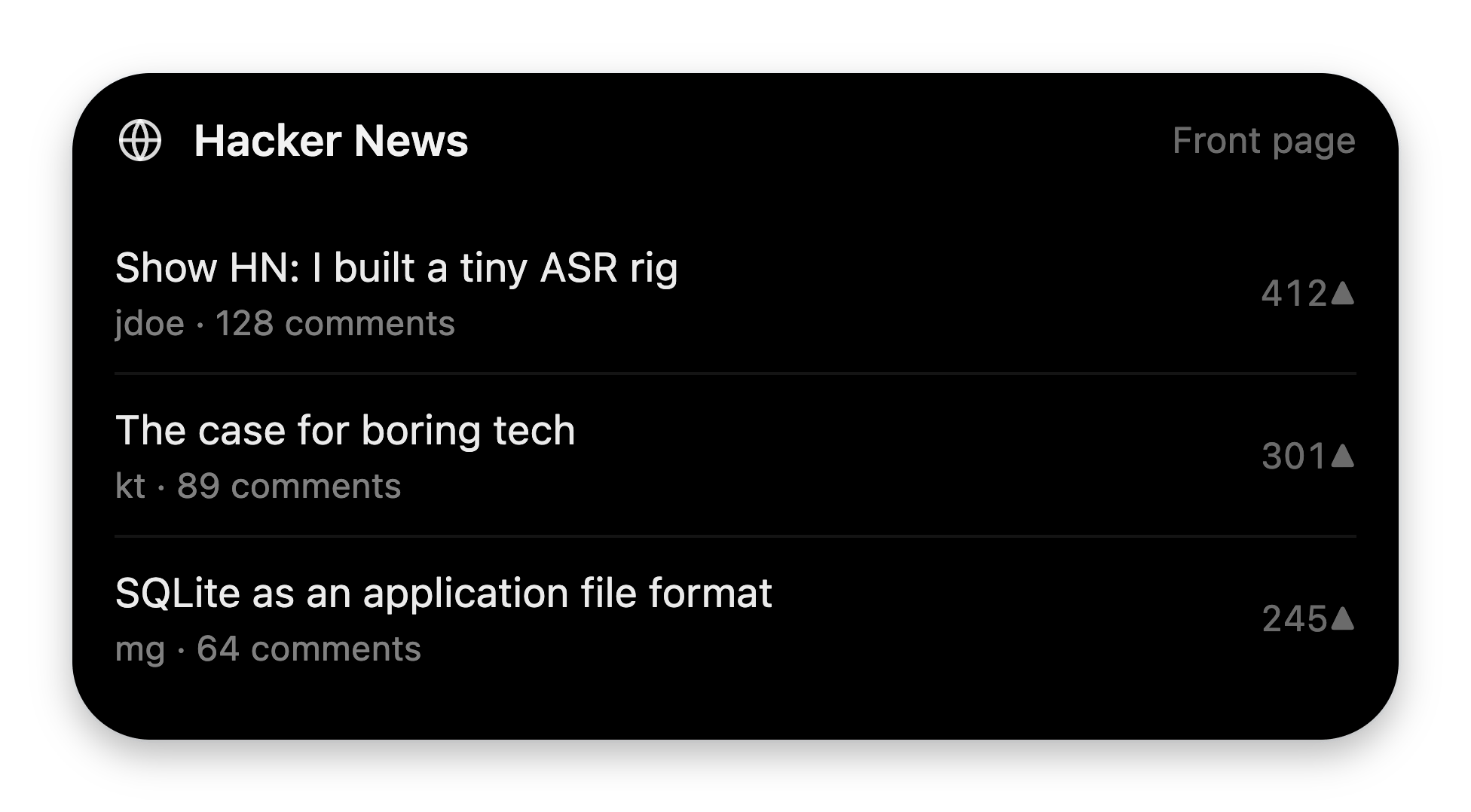
Hit **Save**. It lands in **My Integrations**, and from the next conversation
on the agent can use it anywhere: *"what's on Hacker News?"* → card in the
notch, story read aloud in Rachel's voice.
## Changing it later
| | |
| ----------------- | --------------------------------------------------------- |
| **Refine field** | Plain English change requests — *"add a search action"*. |
| **Edit with AI** | Reopens any Studio-built integration as a draft. |
| **Keep building** | It's a real folder on disk — hand it to Cursor or Claude. |
## Where next
Scoped refines, brand-matched design, icon generation, developer handoff.
The block language behind every card you just saw.
The same integration by hand — full control over tools and cards.
The architecture: manifest, tools, confirmations, and the notch.
Two things worth doing before you save:
* **Fill in Required fields** (that ElevenLabs API key). The draft relaunches
with your values, so the full flow is testable immediately.
* **Click each row in Tools** to stage that action's card, and use the **Asks
first** toggles to decide which actions confirm before running.
Hit **Save**. It lands in **My Integrations**, and from the next conversation
on the agent can use it anywhere: *"what's on Hacker News?"* → card in the
notch, story read aloud in Rachel's voice.
## Changing it later
| | |
| ----------------- | --------------------------------------------------------- |
| **Refine field** | Plain English change requests — *"add a search action"*. |
| **Edit with AI** | Reopens any Studio-built integration as a draft. |
| **Keep building** | It's a real folder on disk — hand it to Cursor or Claude. |
## Where next
Scoped refines, brand-matched design, icon generation, developer handoff.
The block language behind every card you just saw.
The same integration by hand — full control over tools and cards.
The architecture: manifest, tools, confirmations, and the notch.