> ## Documentation Index
> Fetch the complete documentation index at: https://docs.voiceos.com/llms.txt
> Use this file to discover all available pages before exploring further.
# Build for VoiceOS
> Add tools to the VoiceOS agent and answer with native cards in the Mac notch.
VoiceOS is a voice assistant that lives in the Mac notch. Users talk, the agent
acts, and answers arrive as **cards in the notch**.
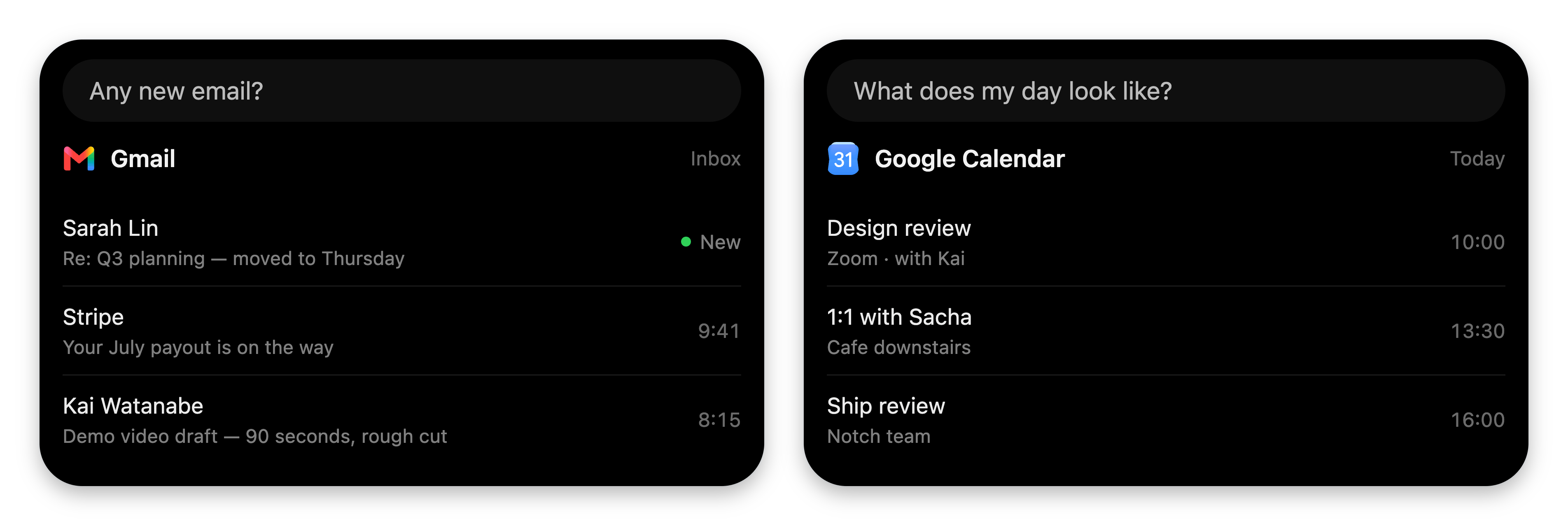
A **custom integration** puts your thing on that surface. You declare tools; the
agent calls them when the user asks; your results render as native cards — or as
[fully custom UI](/integrations/widgets) when you want every pixel. If it has an
API, you can build it: internal dashboards, home automation, your CRM, a coffee
tracker.
 Think of it like the App Store: **VoiceOS is iOS, your integration is an app.**
One manifest declares what it does (tools), where it runs (runtime), what it
needs (auth and permissions), and how it confirms actions (declarative UI).
VoiceOS wires up the rest. You never touch VoiceOS internals — which is also why
your code can never reach VoiceOS's backend or secrets.
## Pick a path
Describe your integration in a sentence. The Integration Studio plans it,
builds it, designs its cards, and lets you test-drive it live. \~3 minutes.
A standalone folder with a manifest and a small MCP server. Full control
over logic, cards, and widgets. \~10 minutes.
Both produce the same thing: an integration folder VoiceOS can install.
Studio-built integrations are real folders too — open one in your editor, or
hand it to a coding agent, and keep building.
## What it feels like
Say you built an **ElevenLabs** integration.
*"Read this in Rachel's voice"* — the agent picks your `generate_speech` tool.
Because it **acts** (it spends API credits and writes a file), VoiceOS first
renders the confirmation card you declared in the manifest, before any of your
code runs.
Think of it like the App Store: **VoiceOS is iOS, your integration is an app.**
One manifest declares what it does (tools), where it runs (runtime), what it
needs (auth and permissions), and how it confirms actions (declarative UI).
VoiceOS wires up the rest. You never touch VoiceOS internals — which is also why
your code can never reach VoiceOS's backend or secrets.
## Pick a path
Describe your integration in a sentence. The Integration Studio plans it,
builds it, designs its cards, and lets you test-drive it live. \~3 minutes.
A standalone folder with a manifest and a small MCP server. Full control
over logic, cards, and widgets. \~10 minutes.
Both produce the same thing: an integration folder VoiceOS can install.
Studio-built integrations are real folders too — open one in your editor, or
hand it to a coding agent, and keep building.
## What it feels like
Say you built an **ElevenLabs** integration.
*"Read this in Rachel's voice"* — the agent picks your `generate_speech` tool.
Because it **acts** (it spends API credits and writes a file), VoiceOS first
renders the confirmation card you declared in the manifest, before any of your
code runs.
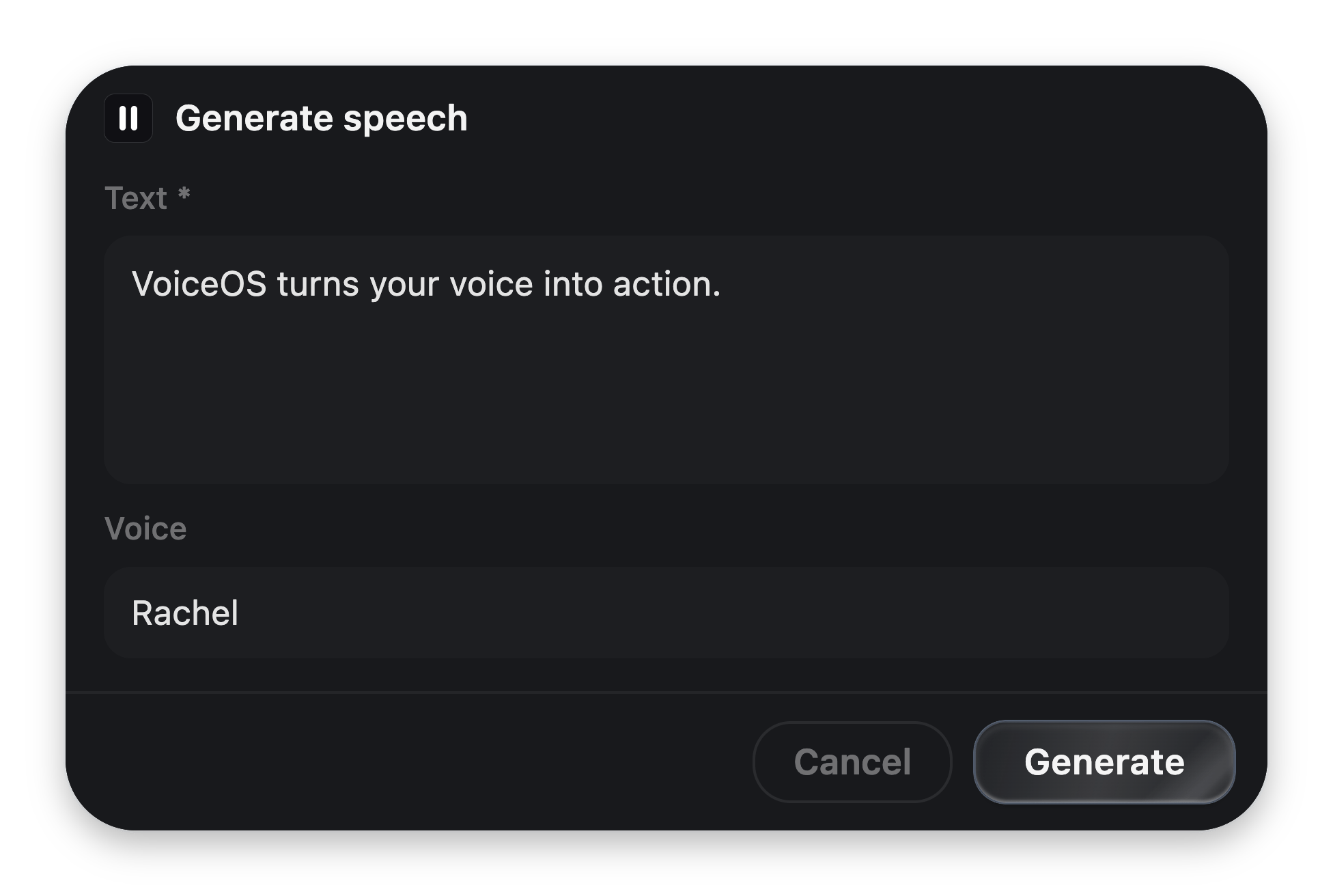 The handler calls the ElevenLabs API and returns JSON. The agent narrates the
data; the notch shows your card.
The handler calls the ElevenLabs API and returns JSON. The agent narrates the
data; the notch shows your card.
 Read-only tools skip the confirmation entirely — *"what voices do I have?"* just
answers, instantly, with a card.
## What you can build
| | |
| --------------------- | --------------------------------------------------------------- |
| **Lookups** | Dashboards, prices, statuses, schedules — anything with an API. |
| **Actions** | Send, create, post, open — always behind a confirmation card. |
| **Trackers** | "Log my coffee", with stats and charts in the notch. |
| **Long-running work** | Background tasks that chime and show a card when done. |
| **Fully custom UI** | Sandboxed HTML widgets when the built-in blocks aren't enough. |
## The path through these docs
Read top to bottom and you'll go from nothing to a polished, branded
integration.
1. **[Quickstart](/integrations/quickstart)** — build one with AI, in the app,
in three minutes.
2. **[How it works](/integrations/how-it-works)** — the architecture in one page.
3. **[Build with code](/integrations/build-with-code)** and
**[defining tools](/integrations/tools)** — schemas, handlers, background
execution.
4. **[Result cards](/integrations/result-cards)**,
**[confirmations](/integrations/confirmations)**,
**[setup fields](/integrations/setup-fields)** — native UI, the easy way.
5. **[Custom widgets](/integrations/widgets)** and the
**[Widget Kit](/integrations/widget-kit)** — pixel-level control.
6. **[Branding](/integrations/branding)**, **[testing](/integrations/testing)**,
**[sharing](/integrations/distribution)** — ship it.
7. **[Reference](/integrations/reference/manifest)** — every field, block, cap,
and bridge message.
The Integration SDK is in developer preview. The folder contract — manifest,
MCP server, cards — is stable and versioned (`schemaVersion: 1`). See
[Limits & stability](/integrations/reference/limits).
Read-only tools skip the confirmation entirely — *"what voices do I have?"* just
answers, instantly, with a card.
## What you can build
| | |
| --------------------- | --------------------------------------------------------------- |
| **Lookups** | Dashboards, prices, statuses, schedules — anything with an API. |
| **Actions** | Send, create, post, open — always behind a confirmation card. |
| **Trackers** | "Log my coffee", with stats and charts in the notch. |
| **Long-running work** | Background tasks that chime and show a card when done. |
| **Fully custom UI** | Sandboxed HTML widgets when the built-in blocks aren't enough. |
## The path through these docs
Read top to bottom and you'll go from nothing to a polished, branded
integration.
1. **[Quickstart](/integrations/quickstart)** — build one with AI, in the app,
in three minutes.
2. **[How it works](/integrations/how-it-works)** — the architecture in one page.
3. **[Build with code](/integrations/build-with-code)** and
**[defining tools](/integrations/tools)** — schemas, handlers, background
execution.
4. **[Result cards](/integrations/result-cards)**,
**[confirmations](/integrations/confirmations)**,
**[setup fields](/integrations/setup-fields)** — native UI, the easy way.
5. **[Custom widgets](/integrations/widgets)** and the
**[Widget Kit](/integrations/widget-kit)** — pixel-level control.
6. **[Branding](/integrations/branding)**, **[testing](/integrations/testing)**,
**[sharing](/integrations/distribution)** — ship it.
7. **[Reference](/integrations/reference/manifest)** — every field, block, cap,
and bridge message.
The Integration SDK is in developer preview. The folder contract — manifest,
MCP server, cards — is stable and versioned (`schemaVersion: 1`). See
[Limits & stability](/integrations/reference/limits).